This is default featured slide 1 title

Go to Blogger edit html and find these sentences.Now replace these sentences with your own descriptions.

This is default featured slide 2 title

Go to Blogger edit html and find these sentences.Now replace these sentences with your own descriptions.

This is default featured slide 3 title

Go to Blogger edit html and find these sentences.Now replace these sentences with your own descriptions.

This is default featured slide 4 title

Go to Blogger edit html and find these sentences.Now replace these sentences with your own descriptions.

This is default featured slide 5 title

Go to Blogger edit html and find these sentences.Now replace these sentences with your own descriptions.

Pages

Showing posts with label blog. Show all posts

Monday, January 2, 2012

How to place Nuffnang Ads between posts in Blogger

few info about Nuffnang..
Bloggers makes use of Nuffnang to earn from their blogs, primarily. Well Nuffnang offers bloggers more than money earnings, as far as my readings is concerned. If you want to know more about Nuffnang you can visit their site www.nuffnang.com
Mostly, :wink: everyone would want the ads to be seen in every post they have. Nuffnang provided the code/script and a tutorial for that. But the provided sample of Nuffnang is placing the ADS code below the blog post (just right above the navigation links of newer post, home, and older post). See the tutorial HERE.

Hmm don't want to go to the link I've given? Just read it here. And see the other options of pasting the Nuffnang codes in different positions of your blog post.
  • Copy the code provided by Nuffnang. (Get the code under To put between contents.)
  • Open your blogger account.
  • If you're using the old version (blogger.com), click Design, else go to the next bullet (right after the 3rd picture below)

Saturday, December 31, 2011

Exporting and importing blog posts from my older blogs


Grettings everyone!

As this year, 2011, near its end, I wanna upload here some of the entries I've made from my older blogs. :happy2: So it'll say that I've started posting here since a year ago, but that is only due to the dates of the posts I've imported.. :a: The real deal is by November 7, 2011... that's so recently but then I've been blogging for years only that I deleted or deactivated lots of blog I've made due to disappointment of giving them less time and attention 

:idea: I want to populate this blog of the entries I've made so far :wink:

How to import entries / blog posts??? [continue reading..click image below]


Well first you need to have the backup of the posts. To do that, export the posts from your preferred blog.. :wink:


  • Look for the blog where you want to get/retrieve/export the posts.
  • Go to Settings.
  • Pick the Others option.
  • Under Blog tools, pick the Export Blogs.
  • Save it, well it should be titled date (mm-dd-yy) and is an xml file.

Then that's the time we Import the Posts... :happy1:

  • Look for the blog where you wish to put/upload/add/import the posts.
  • Go to Settings.
  • Pick the Others option.
  • Under Blog tools, pick the Import Blogs.
  • Choose the xml file.
  • Click Import. :OK:

You'll be given a choice whether you wish to publish all the imported posts or not. I picked the later so that I can still choose which to publish and which not to. :happy1:

Wednesday, June 1, 2011

How to Hide or Show Blogger Navbar

What is a Blogger Navbar?
Blogger Navbar is a nagivational toolbar provided by Blogger.  By defauly, it would appear at the top of every blogspot blogs. Navbar contains:
  •  a search bar (which helps you search anything on the blog you are currently viewing)
  •  share (which helps you promote the blog to twitter, facebook, google buzz, and google reader)   
  •  report abuse
  • next blog (which brings you to some random blogs)
  • email address if you are logged on with your account or none if you haven't
  • if you are the owner of the blog and you are logged on with your account, you see the links of New Post and Design (allowing you to access this services faster)
  • Create Blog if you are not the owner of the blog
  • Sign in or Sign out  which depends on your current state, whether you're logged in with your account or not 

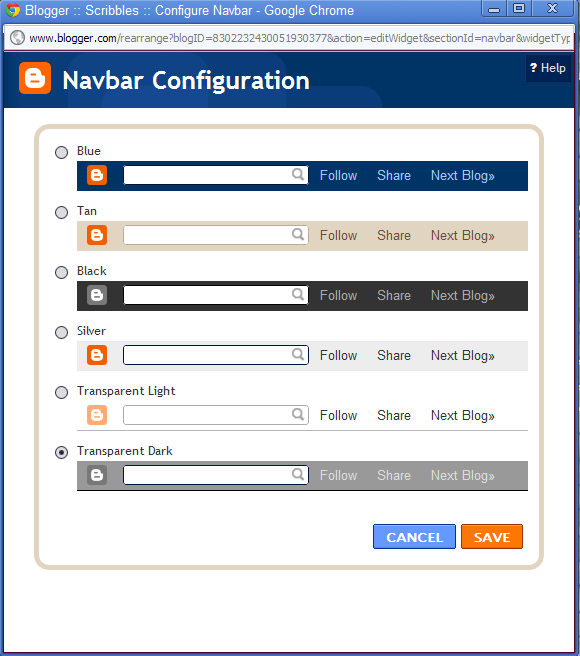
You can configure the navbar by choosing your preferred color.
Just go to Design and select Page Elements.
Find the Navbar design and click Select.
A pop up will appear like the image shown above.