


What is a Blogger Navbar?

Blogger Navbar is a nagivational toolbar provided by Blogger. By defauly, it would appear at the top of every blogspot blogs. Navbar contains:
- a search bar (which helps you search anything on the blog you are currently viewing)
- share (which helps you promote the blog to twitter, facebook, google buzz, and google reader)
- report abuse
- next blog (which brings you to some random blogs)
- email address if you are logged on with your account or none if you haven't
- if you are the owner of the blog and you are logged on with your account, you see the links of New Post and Design (allowing you to access this services faster)
- Create Blog if you are not the owner of the blog
- Sign in or Sign out which depends on your current state, whether you're logged in with your account or not
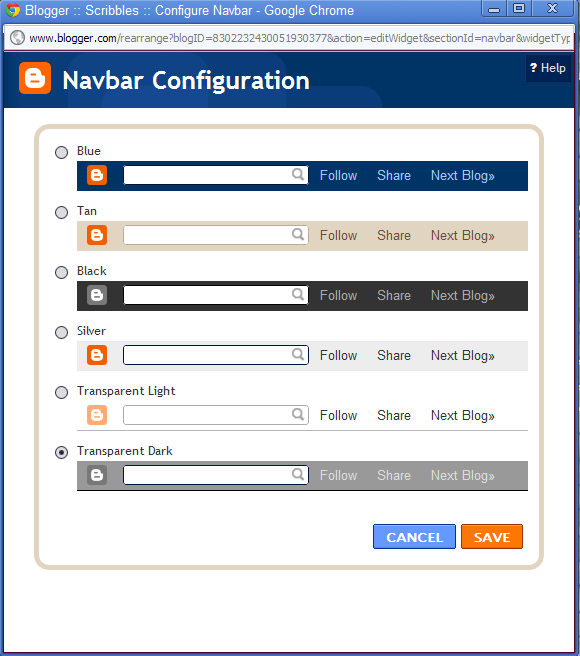
You can configure the navbar by choosing your preferred color.
Just go to Design and select Page Elements.
Find the Navbar design and click Select.
A pop up will appear like the image shown above.


