This is default featured slide 1 title

Go to Blogger edit html and find these sentences.Now replace these sentences with your own descriptions.

This is default featured slide 2 title

Go to Blogger edit html and find these sentences.Now replace these sentences with your own descriptions.

This is default featured slide 3 title

Go to Blogger edit html and find these sentences.Now replace these sentences with your own descriptions.

This is default featured slide 4 title

Go to Blogger edit html and find these sentences.Now replace these sentences with your own descriptions.

This is default featured slide 5 title

Go to Blogger edit html and find these sentences.Now replace these sentences with your own descriptions.

Pages

Saturday, April 14, 2012

Getting Ready with Android Development, Installations and Configurations

JDK
Android SDK
  • Go to http://developer.android.com/sdk/index.html
  • Click on SDK from the menus
  • Select your preferred SDK installer or zip files (I picked the zip file.. the executable file cannot detect the jdk on my pc.. the zip file does)

Tuesday, April 3, 2012

Reviving this blog

from fanpop.com 
After having a real break I can finally have time to post things here about some stuffs I have learned and those that I wanted to share to everyone else :)

Well it ranges from blog tutorials, web to android application development.


I hope that my little knowledge can help my friends and everyone else.

Monday, January 2, 2012

How to place Nuffnang Ads between posts in Blogger

few info about Nuffnang..
Bloggers makes use of Nuffnang to earn from their blogs, primarily. Well Nuffnang offers bloggers more than money earnings, as far as my readings is concerned. If you want to know more about Nuffnang you can visit their site www.nuffnang.com
Mostly, :wink: everyone would want the ads to be seen in every post they have. Nuffnang provided the code/script and a tutorial for that. But the provided sample of Nuffnang is placing the ADS code below the blog post (just right above the navigation links of newer post, home, and older post). See the tutorial HERE.

Hmm don't want to go to the link I've given? Just read it here. And see the other options of pasting the Nuffnang codes in different positions of your blog post.
  • Copy the code provided by Nuffnang. (Get the code under To put between contents.)
  • Open your blogger account.
  • If you're using the old version (blogger.com), click Design, else go to the next bullet (right after the 3rd picture below)

Saturday, December 31, 2011

Exporting and importing blog posts from my older blogs


Grettings everyone!

As this year, 2011, near its end, I wanna upload here some of the entries I've made from my older blogs. :happy2: So it'll say that I've started posting here since a year ago, but that is only due to the dates of the posts I've imported.. :a: The real deal is by November 7, 2011... that's so recently but then I've been blogging for years only that I deleted or deactivated lots of blog I've made due to disappointment of giving them less time and attention 

:idea: I want to populate this blog of the entries I've made so far :wink:

How to import entries / blog posts??? [continue reading..click image below]


Well first you need to have the backup of the posts. To do that, export the posts from your preferred blog.. :wink:


  • Look for the blog where you want to get/retrieve/export the posts.
  • Go to Settings.
  • Pick the Others option.
  • Under Blog tools, pick the Export Blogs.
  • Save it, well it should be titled date (mm-dd-yy) and is an xml file.

Then that's the time we Import the Posts... :happy1:

  • Look for the blog where you wish to put/upload/add/import the posts.
  • Go to Settings.
  • Pick the Others option.
  • Under Blog tools, pick the Import Blogs.
  • Choose the xml file.
  • Click Import. :OK:

You'll be given a choice whether you wish to publish all the imported posts or not. I picked the later so that I can still choose which to publish and which not to. :happy1:

Tuesday, July 26, 2011

Change Google+ Language

The language is on Tagalog mode..


This is the first thing I always wanna modify on every sites or networking community I have joined, its language settings. I always wanna have the standard language (English, though it's not my native language) so it'll be easier to navigate and do other stuffs.

So..
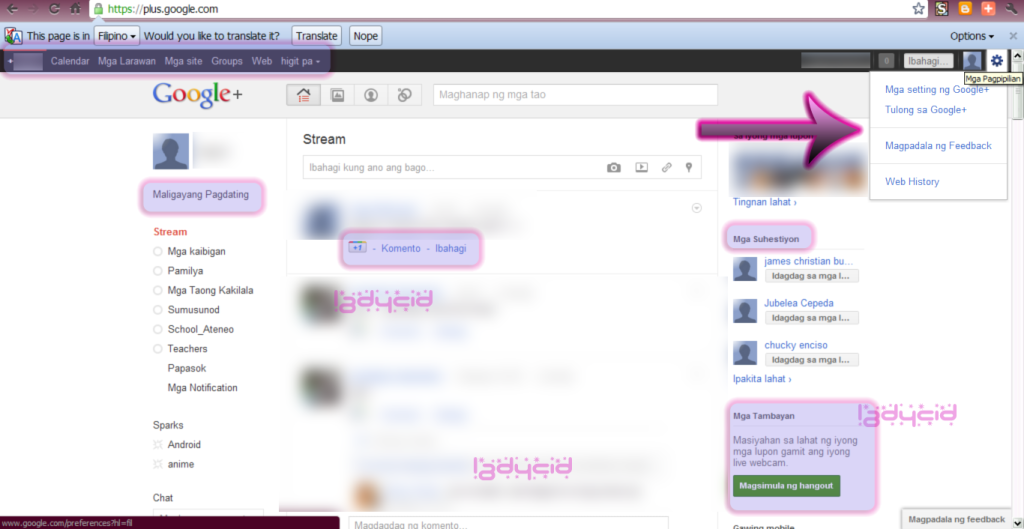
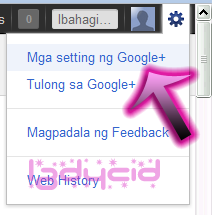
1. click on the gear tool on Google+ menu bar to find Google+ settings.
2. click the first option (tagalog mode - Mga Setting ng Google +), it would probably mean Google+ settings

By now..you'll be transferred to a settings page...

Wednesday, June 1, 2011

How to Hide or Show Blogger Navbar

What is a Blogger Navbar?
Blogger Navbar is a nagivational toolbar provided by Blogger.  By defauly, it would appear at the top of every blogspot blogs. Navbar contains:
  •  a search bar (which helps you search anything on the blog you are currently viewing)
  •  share (which helps you promote the blog to twitter, facebook, google buzz, and google reader)   
  •  report abuse
  • next blog (which brings you to some random blogs)
  • email address if you are logged on with your account or none if you haven't
  • if you are the owner of the blog and you are logged on with your account, you see the links of New Post and Design (allowing you to access this services faster)
  • Create Blog if you are not the owner of the blog
  • Sign in or Sign out  which depends on your current state, whether you're logged in with your account or not 

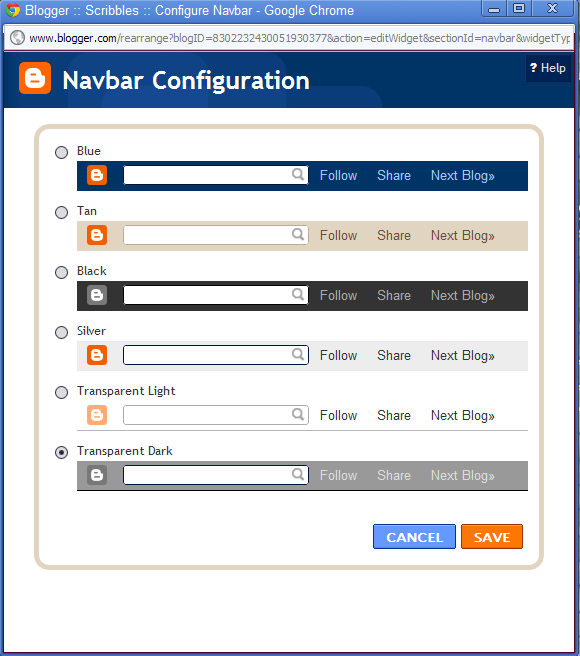
You can configure the navbar by choosing your preferred color.
Just go to Design and select Page Elements.
Find the Navbar design and click Select.
A pop up will appear like the image shown above.

Splender - I think God can explain


There's a lot of things I understand,

and there's a lot of things,
That I don't want to know.
But you're the only face,
I recognize, It's so damn sweet of you,
to look me in the eyes.
It's all right, I'm O.K.,
I think God can explain,
I believe I'm the same,
I get carried away
It's alright, I'm O.K.,
I think God can explain
I'm relieved, I'm relaxed,
I'll get over it yet,
The scent of vaseline,
in the summertime,
the feel of an ice cube,
melting over time,
the world seems bigger than both of us,
yet it seems so small,
when I begin to cry.
It's all right, I'm O.K.,
I think God can explain,
I believe I'm the same,
I get carried away
It's alright, I'm O.K.,
I think God can explain
I'm relieved, I'm relaxed,
I'll get over it yet,
I'm so much better than you guessed,
I'm so much bigger than you guessed,
I'm so much brighter than you guessed.
It's all right, I'm O.K.,
I think God can explain,
I believe I'm the same,
I get carried away
It's alright, I'm O.K.,
I think God can explain
I'm relieved, I'm relaxed,
I'll get over it yet,
I'll get off of your back,
I think God can explain.
I think God can explain. 

Source: stlyrics.com

Sunday, May 29, 2011

iGoogle theme - kawaii (my favorite)

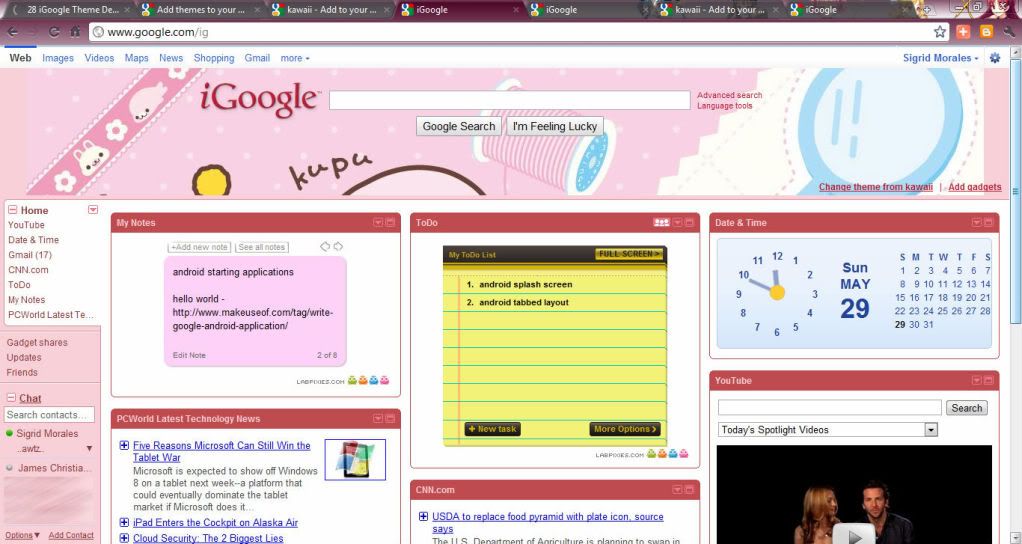
This is my favorite iGoogle theme. It's kawaii and it has good looking foods.. hahaha.. No wonder why I like it that much. I've been using it ever since I first use the iGoogle homepage.


Find this theme at this link - kawaii

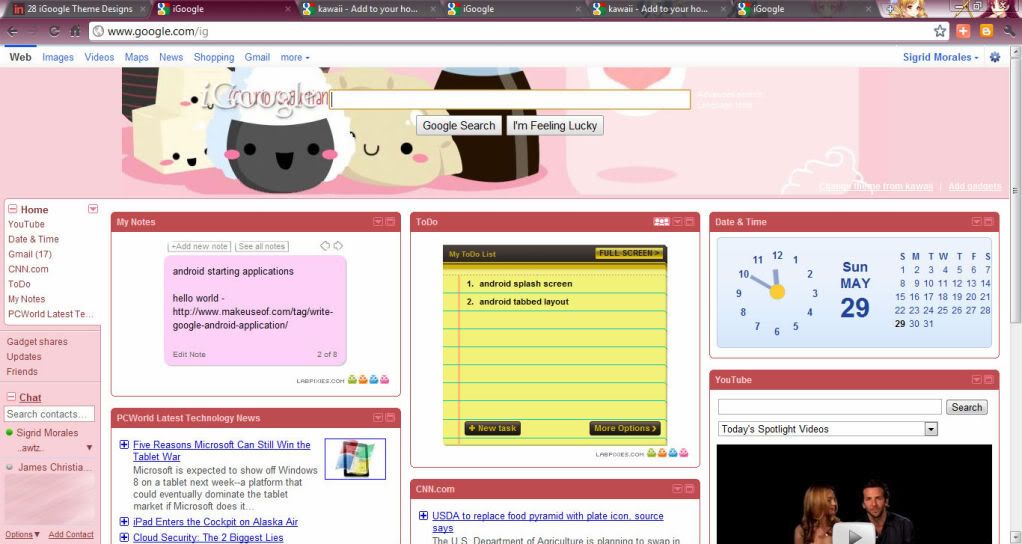
If you use it or install it, it will look like this one..


It's just that iGoogle text is not readable. Perhaps the color?? Hmmp

iGoogle theme - kawaii

Well yes, I love kawaii stuffs so I searched and used kawaii styled theme for my iGoogle homepage. My recently found one is this is one..


Here's the direct link for this theme Kawaii

When you install or use this theme.. it looks like this..


So the whole image can't be seen in the homepage, since it's only a background image :)
But the iGoogle and other default text from Google are clearly seen.
And their colors looks really amazing.. :)

iGoogle.. my personalized and online desktop tool

It's been more than couple of months since I tried iGoogle as the homepage for my browsers (Google Chrome and Mozilla Firefox). 
  • I can add gadgets like My Notes, To do List, Calendar, PcWorld news, Youtube, and etc.
  • I can have social networking sites such as the Twitter and Facebook by adding gadgets too.
  • I can blog instantly with the help of a gadget.
  • I can access different services provided by Google like my Gmail inbox, have some chat with my Gmail contacts, etc...
  • I can personalized the whole homepage. 
    • I can rearrange the gadgets.
    • I can edit the theme of the homepage or just use themes already provided from the net..
It's way faster and really helpful for me especially My Notes and To do list gadgets. I can almost have a desktop anywhere I go, as long as I can access the internet and my gmail account.

Note: You can't use the iGoogle without an account!

(as far as I know. I've tried to use it when I didn't login.. but I failed..)

That's I guess a drawback with it. You may have to login all the time or remember your account so you can use iGoogle always. And who knows what THEY may be doing with the information gathered from our personalized homepage... :) Just thinking about it..

Nonetheless, I like using iGoogle.. :) thumbs up for my online desktop..iGoogle..

Friday, May 27, 2011

Color Picker and Color Sniffer

Color mixing and matching may be hard during the designing process. Photo editor or other designing applications provide us with their own color picke. The application works by clicking a spot in the box of colors or virtual palette and the application will generate the necessary code (HSB and RGB) or automatically change their primary color to be used.

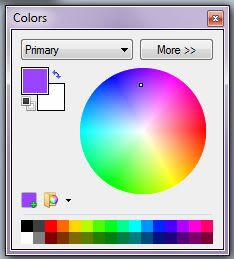
This is a sample color picker provided by Paint.net which I often use than the ordinary Paint provided by Windows. You click the spot (mouse pointer is represented by a small box) of desired color from the pie of colors or the color palette provided below and the application changes automatically its primary color.


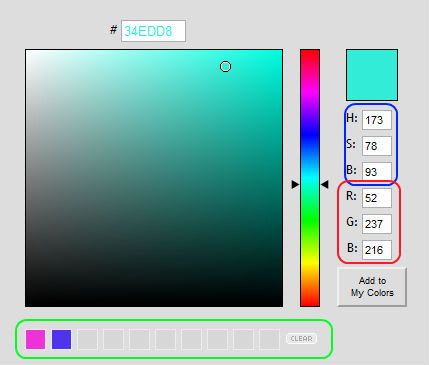
This other application is an online color picker tool provided by Color Picker.com. The same rule applies. You click on the spot (mouse pointer is represented by the small circle) and the tool generates code for HSB and RGB found on the right part.

Additional feature is also given wherein you can save or add the colors in the My Colors or palette part found right below the tool.


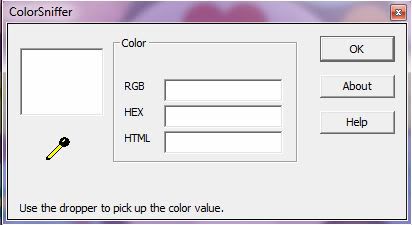
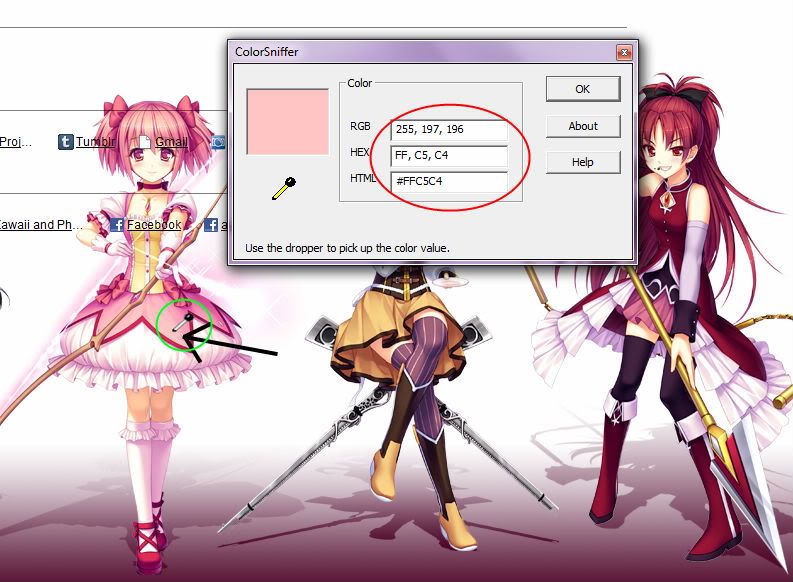
And my most preferred tool from all I've used is the Color Sniffer. I've seen it first from a video tutorial of designing a Microsoft PowerPoint Presentation template. I found it very useful and easy to use. You can easily pick colors from the screen (giving us freedom in choosing colors). This application is found in Rcfreestyle website. You can download it there.


So how to use it?
Click on the dropper tool and hold down your left mouse while you pick colors from the screen.


While holding down your left mouse, the dropper color changes to white. As you pause from navigating through the screen or release the mouse, codes for RGB, HEX, and HTML are generated. I use the HTML or HEX codes most of the time for my web designs and java application development.


I enlarged the picture to show the dropper clearly (I hope so)... :)

The problem with this application is that when you hit the OK button, the application closes. So you have to reopen the application to use it again. To avoid this, you just leave the application to your preferred location on the screen. To avoid it from blocking the other windows, I place it right below the screen, maybe somewhere on the clock part (lower right part) or even lower than that place.

You can also use another color sniffer application. The whole logic is also the same with the sniffer.
Quick HTML Color Picker - Quick HTML Color Picker is a free Windows color picker tool. With Quick HTML Color Picker, you can easily pick any color from the screen. You can preview the color, use mouse or keyboard to select the color you wanted, and get the color in RGB and HTML format. You can cancel a capture by "Esc" key or right-clicking. Supports saving html color value to clipboard automatically. And it's totally free! - the site
So find the application on http://quick-html-color-picker.allgraphicstools-com.qarchive.org/ .

Enjoy this fun and easy ways on choosing colors :) It'll help much for the mix and match color designs..

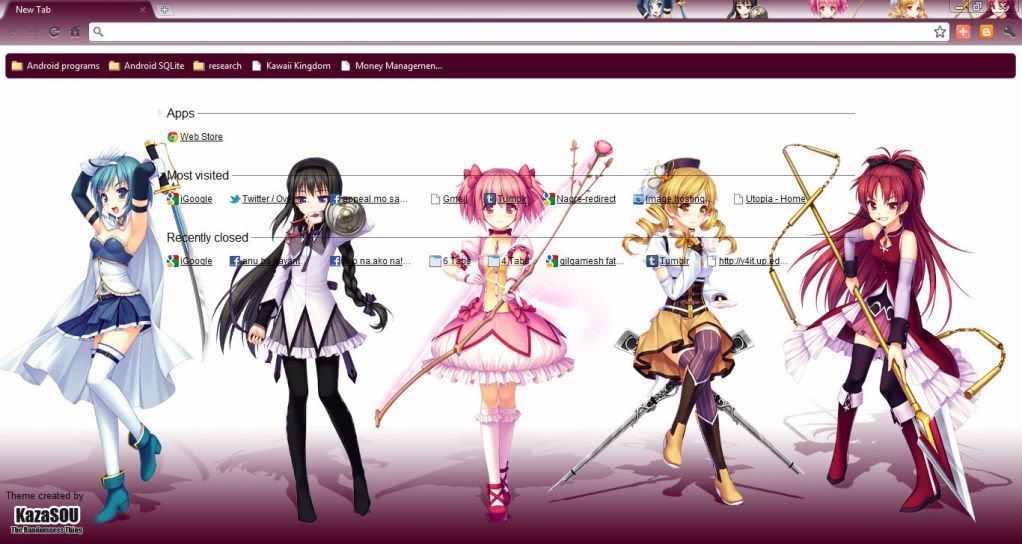
My new installed Google Chrome Theme

It was hard to find cool themes for my Google Chrome web browser. I was actually looking for Maid Sama styled theme but I can't seem to find prettier themes. Looking for kawaii themes are also hard so I ventured to looking more of anime styled themes, also considering anime that I haven't watch.

I found this site of Randomness Thing that has a list of their own created google chrome themes :) They also create themes based from user's request. Info about this can be found on the site I provided.


Here is a direct link from the site where I downloaded this theme google-chrome-theme-mahou-shoujo-madoka-magica. Sorry but I really love the mix and match of this theme, the colors, the character images, and the small character heads at the upper right part of the browser. The text is readable so it's really good to use.

Thumbs up for them !! Such a great work there.

Wait..wait..wait.. I have to research about this anime mahou shoujo madoka magica. The drawing is good enough..

Tuesday, May 10, 2011

UML Diagram creator

I need to create different UML diagrams for my Senior Project's System Design... I was thinking of creating it through Microsoft Word. But it may take too much time because of moving those different shapes (lines, circles, ovals, etc.).  Through Dr. Google's help I found some helpful software to use.

I haven't really use it extensively so I can't give some further comments..

UMLet - UMLet is an open-source UML tool with a simple user interface: draw UML diagrams fast, export diagrams to eps, pdf, jpg, svg, and clipboard, share diagrams using Eclipse, and create new, custom UML elements. (UMLet)


And this site http://www.visual-paradigm.com/VPGallery/diagrams/index.html contains good explanations for different UML diagrams... :)


Saturday, April 30, 2011

Sponge Cola - Makapiling Ka


Di na Mabawi


3rd change of my blog look and name

Hi there..
I actually created a blog that would separate lots of stuffs from my personal blog. I call this one as Scribbles.. It was Live.Laugh.Love at first and changed to Look Out then right now Scribbles. The theme also undergone 3 changes I think.. 

I just want to contain every codes I did and learned and also list my favorites into one site. Please bare with me if I separated this with my personal blog.

So I still say that this blog is under construction. I'll fix the links soon and all the widgets at the right side of the layouts... `Til then folks!

Wednesday, April 13, 2011

PPVrip information links

When I visited extratorrent.. a new kind of rip I think is emerging from the p2p environment..

PPVrip..

I thought it could be something just like TS (telesync).
I found some useful information from wikipedia about the other rips such as the screeners, the dvdrips, the brrips, etc...

PPVrip is also known as Pay-Per-View Rip has still few information established so far..


hmm another link with few information so far..


Sunday, April 10, 2011

WoW - Plants vs Zombies questline (2)


I found this video shared by my friend via facebook. I was intrigued by its title Plants vs. Zombie. But I found this weird as the video is different from the real Plants vs. Zombie game.

i'm not really playing dota or something familiar with that game..
but lol this quest is so good.. parang plantz vs zombie lang tlga..
haha makes me want to play this game also.. is it called wow???
hmm can someone tell me what you call this one??

Free Powerpoint Templates - Part 17

Free Powerpoint Templates - Part 17

link for powerpoint templates. Well just one of my sources. :)


General Powerpoint Templates

General Powerpoint Templates

ayos dakol ako dgd nakuang powerpoint templates haha..
ty.. will be acknowledging you for my future use..